Requirements
This is the plugin for the classic shortcode checkout.
If your checkout page uses the WooCommerce Checkout block (the default for stores created since WooCommerce 8.3), use the Checkout Block plugin instead. Both are included in every plan.
- WooCommerce 3.0 or later with the
[woocommerce_checkout]shortcode on the checkout page. Tested up to WooCommerce 9.5. - WordPress 4.8 or later and PHP 5.6 or later. The plugin declares compatibility with High-Performance Order Storage.
- Your BePostcodes API key, from your dashboard.
If WooCommerce is not active the plugin shows a notice and deactivates itself.
Install the plugin
- Download the plugin zip from your dashboard.
- In WordPress go to Plugins › Add New Plugin › Upload Plugin, choose the zip and click Install Now.
- Click Activate.
Add your API key
- Go to WooCommerce › Settings › Advanced and open the BePostcodes.com Settings section.
- Tick Enabled.
- Paste your key into API Key and click Save changes.
Both the Enabled box and a key are needed before anything appears at checkout.
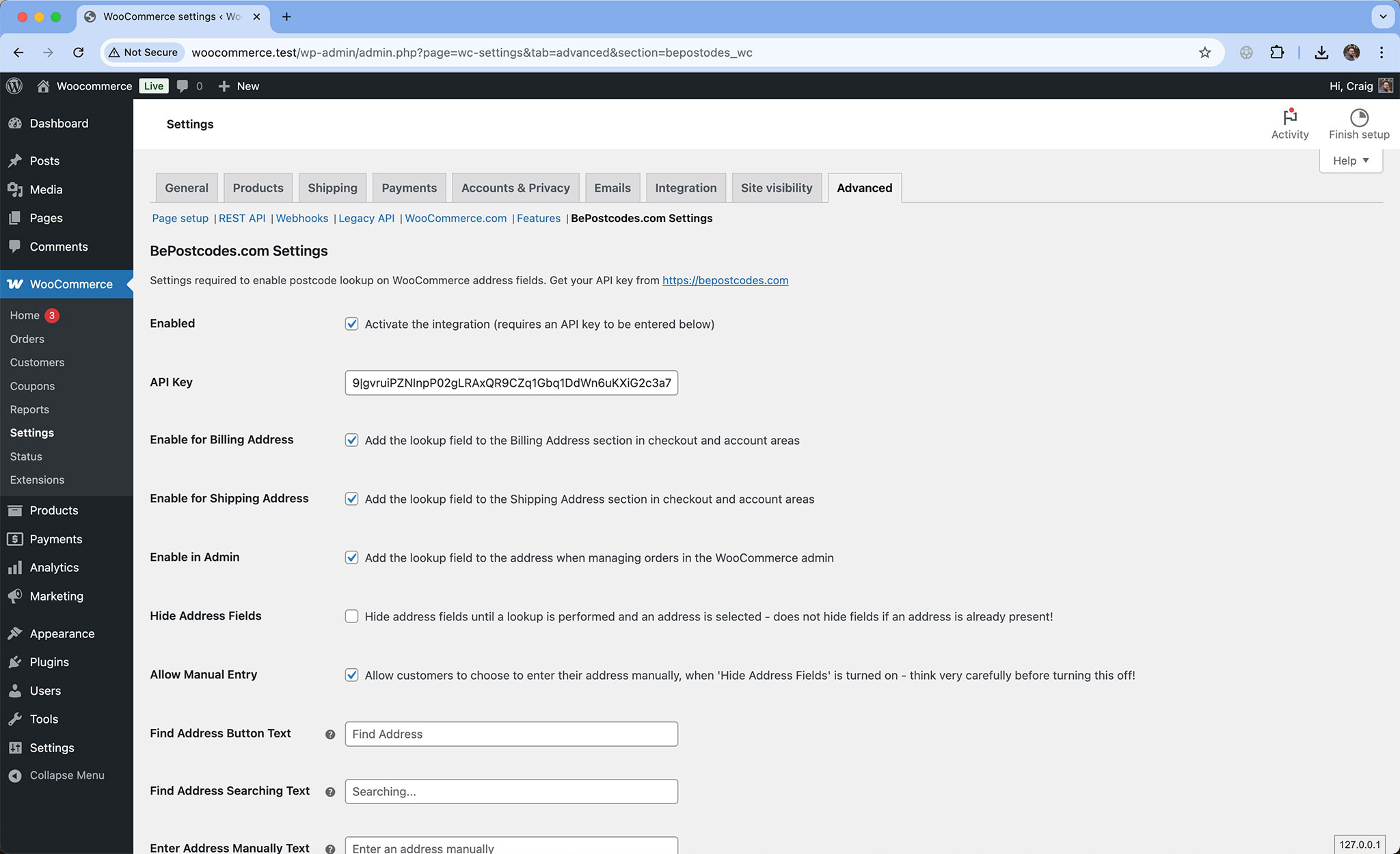
Settings
The defaults suit most stores. The others let you decide where the lookup appears and how it behaves.
| Setting | Default | What it does |
|---|---|---|
| Enabled | Off | The master switch. Needs an API key as well. |
| Enable for Billing Address | On | Adds the lookup to the billing address at checkout and in the customer's account. |
| Enable for Shipping Address | On | Adds the lookup to the shipping address at checkout and in the customer's account. |
| Enable in Admin | On | Adds the lookup to the address editor when you edit an order in WooCommerce. |
| Hide Address Fields | Off | Hides the address inputs until an address has been chosen, so the shopper only sees a postcode box and a button. Fields that already contain an address are never hidden. |
| Allow Manual Entry | On | With Hide Address Fields on, shows an "Enter an address manually" button so shoppers whose address is not listed can still type it. Think carefully before turning this off. |
| Find Address Button Text | Find Address | Change the button label. Leave blank to keep the translatable default. |
| Find Address Searching Text | Searching... | The label shown while a lookup runs. |
| Enter Address Manually Text | Enter an address manually | The label of the manual-entry button. |
| Hook Priority | 10 | Raise this if another checkout plugin stops the button appearing. See troubleshooting. |
What the shopper sees
- With the country set to United Kingdom, the postcode field moves up to sit under the country, with a Find Address button beside it.
- The shopper types a postcode and clicks the button or presses Enter.
- A Select Address drop-down appears, headed "3 addresses found" or however many there are.
- They pick one. Address line 1, line 2, town and county fill in, the postcode is tidied into its spaced form, and WooCommerce recalculates shipping.
By default the address inputs stay visible and editable. With Hide Address Fields on they appear only after an address is chosen, or when the shopper clicks Enter an address manually. For any country other than the United Kingdom the button is hidden and the checkout works as normal.
The same lookup is available on the customer's My Account › Addresses pages, and to your staff when editing an order's address in the WooCommerce admin.
Errors are shown in a browser alert, in deliberately plain language:
- "No addresses were found for this postcode."
- "The postcode lookup failed. Please try again later." when the key is rejected or the store has been rate limited.
- "Server error. Please try again later." or "An unknown error occurred. Please try again later." for anything else.
Test it
- Add a product to the basket and go to the checkout.
- Make sure the country is United Kingdom.
- Type a postcode you know, click Find Address and pick an address.
- Check the billing fields fill in and the shipping options update. Repeat for shipping if you ship to a different address.
- Place a test order and check the address on it.
Each search uses one lookup from your allowance. The browser remembers results for a postcode while the shopper stays on the page, so searching the same postcode twice on one visit does not use a second lookup.
Troubleshooting
No Find Address button at checkout
Check Enabled is ticked and an API key is saved, the country is United Kingdom, and the checkout page really is the shortcode checkout rather than the Checkout block. Then try the hook priority below.
Another plugin edits the checkout fields
Checkout field editors rebuild the form after this plugin has added its button. Raise Hook Priority so the button is added later. For ThemeHigh's Checkout Field Editor a priority of 1001 or above works.
"The postcode lookup failed. Please try again later."
Usually the API key: copy it fresh from your dashboard and paste it with no spaces either side. It is also what shoppers see if the month's lookups are used up or the store has been rate limited for a burst of searches.
Shoppers cannot see the address fields
Hide Address Fields is on. Either turn it off, or make sure Allow Manual Entry is on so the "Enter an address manually" button is available.
The Settings link on the Plugins page opens the wrong tab
Known in this version. Go to WooCommerce › Settings › Advanced and find the BePostcodes.com Settings section there.
For developers
The plugin exposes filters so you can change its text and behaviour from a theme or a small plugin. Filters take precedence over the settings and over translations.
| Filter | Purpose |
|---|---|
bepostcodes-wc_find-address-button-text | Button label. Default "Find Address". |
bepostcodes-wc_find-address-searching-text | Label while searching. Default "Searching...". |
bepostcodes-wc_enter-address-manually-text | Manual-entry button label. Default "Enter an address manually". |
bepostcodes-wc_api_error_400, _401, _404, _429, _500 | Change the message shown for each error. |
bepostcodes-wc_hide-fields | Which fields Hide Address Fields hides. Default address_1, address_2, city, state. |
bepostcodes-wc_billing_selector_row_class, bepostcodes-wc_shipping_selector_row_class | CSS classes on the Select Address row. Default form-row form-row-wide. |
bepostcodes-wc_clear_additional_fields | Whether to clear floats before the additional-fields section. Default true. |
- Lookups go through
admin-ajax.phpwith the actionbepostcodes_wcat checkout andbepostcodes_wc_wp_adminin the order editor. Your key stays on the server. - Picking an address triggers WooCommerce's
update_checkoutevent. - The address goes into the standard
billing_andshipping_address_1, address_2, city and state fields.
Questions
- I am moving to the Checkout block. What do I do?
- Install the Checkout Block plugin, add the same API key, and deactivate this one. Both are included in your plan.
- Can I turn it off for shipping but keep billing?
- Yes. Untick Enable for Shipping Address. The same works the other way round, and for the admin order editor.
- Does it change how orders are stored?
- No. The address goes into WooCommerce's standard fields, so order emails, exports and fulfilment plugins are unaffected.