Requirements
- Gravity Forms 2.0 or later, installed and activated. The plugin is a Gravity Forms add-on and does nothing without it.
- PHP 7.4 or later on your web server.
- A form that uses the built-in Gravity Forms Address field. Lookup fills that field's own inputs, so a form built from separate single-line text fields needs to be reworked to use an Address field first.
- Your BePostcodes API key, which is on your dashboard as soon as payment clears. One key works on every site you run.
Install the plugin
- Download the plugin zip from your dashboard.
- In WordPress go to Plugins › Add New Plugin › Upload Plugin, choose the zip and click Install Now.
- Click Activate. The plugin registers itself with Gravity Forms and adds a settings tab.
Updating later works the same way: upload the new zip over the old one. Your API key and field settings are kept.
Add your API key
- Go to Forms › Settings › UK Postcode Lookup.
- Paste your key into the BePostcodes.com API Key field and click Save Settings.
The key is stored in your WordPress database and only ever used server-side. Visitors' browsers never see it.
Switch lookup on for an Address field
Lookup is switched on per field, so you choose exactly which address fields on which forms get it.
- Edit the form and click the Address field to open its settings.
- On the General tab, tick Enable UK Postcode Lookup.
- Click Update to save the form.
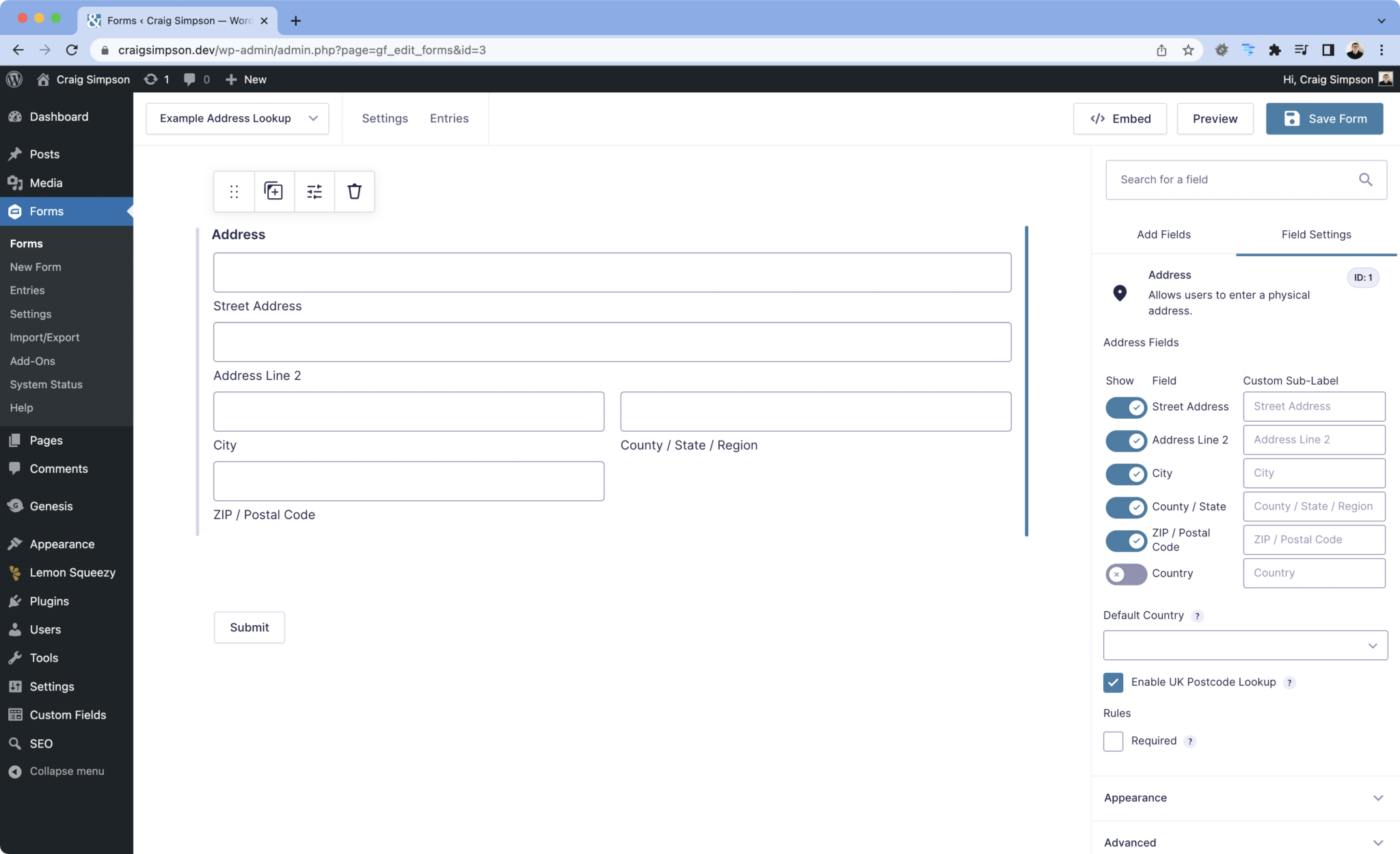
Any Address field type works, including International. If you use the UK type, only the inputs that type shows are filled.
Which inputs get filled
There is nothing to map. The plugin writes into the Address field's standard inputs, so entries, notifications, exports and add-ons see the data exactly where they always have.
| Address field input | Filled with | Example |
|---|---|---|
| Street Address | First line of the chosen address | Flat 4 |
| Address Line 2 | Second line, if there is one | 22 Castle Street |
| City | Town or city | Norwich |
| State / Province / Region | County | Norfolk |
| ZIP / Postal Code | The postcode the visitor searched for | NR2 1PJ |
An input is only filled if the Address field shows it. Hide Address Line 2 in the field settings and the second line is simply not written anywhere.
What the visitor sees
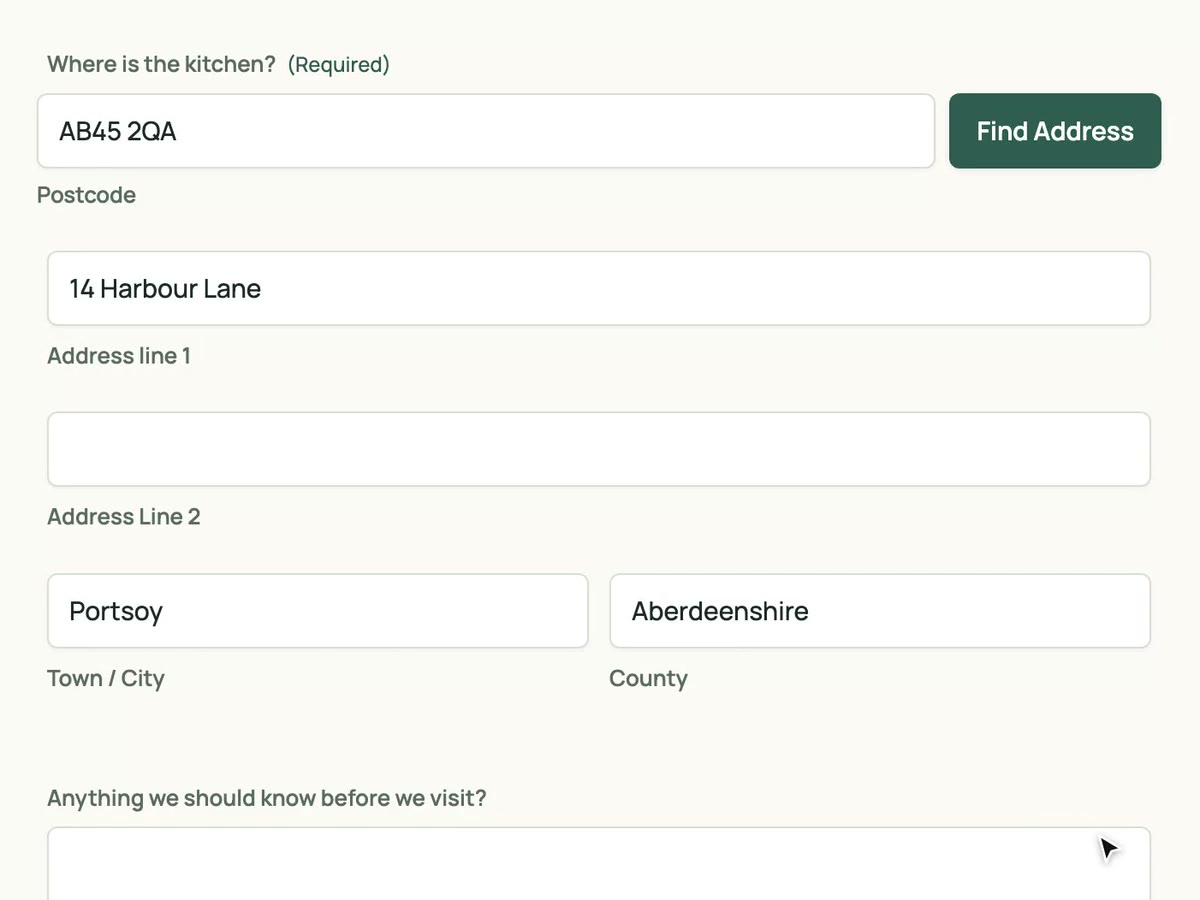
Above the address inputs, the visitor gets a Postcode box and a Find Address button. The field's own postcode input is hidden while this is showing, so there is only one place to type a postcode.
- They type their postcode and click Find Address.
- A Select your address list appears with every address at that postcode.
- They pick one. Street, line 2, town, county and postcode fill in and the list disappears.
The street, town and county inputs stay editable throughout, so a visitor can correct a flat number or type the whole address by hand if theirs is not listed. If JavaScript is off, the lookup box is hidden and the normal Address field is shown.
The messages a visitor can see, so you recognise them in support requests:
- "Please enter a postcode" and "Please enter a postcode of at least 5 characters" if the box is empty or too short. These do not use a lookup.
- "Invalid postcode, please enter your address manually" when the postcode is not recognised or the lookup could not be completed.
- "No address found, please try again, or enter your address manually." when the postcode is valid but has no deliverable addresses.
Test it
- Open the page with the form, or use the form's Preview link.
- Type your own postcode, or any postcode you know, and click Find Address.
- Pick an address and check the inputs fill in.
- Submit the form and open the entry under Forms › Entries. The address should be stored in the normal Address field, line by line.
Each click of Find Address uses one lookup from your monthly allowance. Picking an address from the list is free, so a few test searches cost a few lookups.
Troubleshooting
The "Enable UK Postcode Lookup" setting is missing
It only appears on the Address field type, on the General tab. If you are editing a Single Line Text field, swap it for an Address field.
No lookup box on the form
Check the setting is ticked on that specific field and the form has been updated. Then check the API key is saved under Forms › Settings › UK Postcode Lookup. Finally, view the page logged out with caching cleared; some caching plugins serve an old copy of the form.
Every search says "Invalid postcode"
Usually the API key. Open your dashboard, copy the key again and paste it with no spaces either side. If your subscription has lapsed or the month's lookups are used up, searches fail the same way; your dashboard shows both.
Two lookup-enabled Address fields on one page
Use one lookup-enabled Address field per page. The lookup box is a single element, so two on the same page interfere with each other. Multi-page forms are fine as long as each page has at most one.
The postcode input is empty in entries
The postcode is written when an address is picked from the list. If a visitor searches but then types the rest by hand, ask them to pick their address, or make the Address field required so Gravity Forms prompts for the postcode.
Questions
- Does it work with multi-page forms and conditional logic?
- Yes. The lookup runs in the browser on whichever page holds the Address field. Conditional logic, notifications and confirmations are untouched.
- Can I use it on more than one form?
- Yes. Tick the setting on each Address field you want it on. There is no per-form limit, and one API key covers every site you run.
- Can I change the button text or styling?
- Not from the settings in this version. The lookup box, button and list use plain markup that picks up your theme's form styles, and you can target them with CSS.
- Does it change how entries are stored?
- No. The address is saved in the Address field's own inputs, so exports, feeds and add-ons that read the Address field keep working.