Requirements
- Contact Form 7, installed and activated. If it is missing the plugin shows an admin notice and does nothing else.
- PHP 8.1 or later on your web server.
- A form with separate text fields for the postcode, the first address line and the town. These are the three fields the lookup needs; line 2 and county are optional.
- Your BePostcodes API key, from your dashboard. One key works on every site you run.
Install the plugin
- Download the plugin zip from your dashboard.
- In WordPress go to Plugins › Add New Plugin › Upload Plugin, choose the zip and click Install Now.
- Click Activate. A BePostcodes CF7 item appears under Settings, and a BePostcodes tab appears in the Contact Form 7 form editor.
Add your API key
- Go to Settings › BePostcodes CF7.
- Paste your key into API key.
- Leave Enable lookup ticked. This is the site-wide switch; untick it to pause lookups on every form at once.
- Optionally change Button label (default "Find address") and Loading label (default "Finding addresses...") to suit your form.
- Click Save Changes.
The key stays on your server. The browser talks to your own WordPress site, which makes the lookup on its behalf.
Map your form fields
Contact Form 7 does not have an address field type, so the plugin needs to know which of your tags hold which part of the address. You map them once per form.
1. Give your address tags clear names
In the form editor, make sure each part of the address has its own text tag. Something like this works well:
<label> Postcode [text* your-postcode] </label>
<label> Address line 1 [text* address-line-1] </label>
<label> Address line 2 [text address-line-2] </label>
<label> Town or city [text* town-city] </label>
<label> County [text county-region] </label>
2. Map the tags on the BePostcodes tab
- Open the BePostcodes tab in the form editor.
- Tick Enable lookup for this form.
- Enter the tag name for each part. Use the name inside the square brackets, so
your-postcode, not the label text. The plugin suggests the tags it finds in your form as you type. - Click Save.
| Mapping | Example tag name | Required |
|---|---|---|
| Postcode field tag name | your-postcode | Yes |
| Address line 1 field tag name | address-line-1 | Yes |
| Address line 2 field tag name | address-line-2 | No |
| Town/City field tag name | town-city | Yes |
| County/Region field tag name | county-region | No |
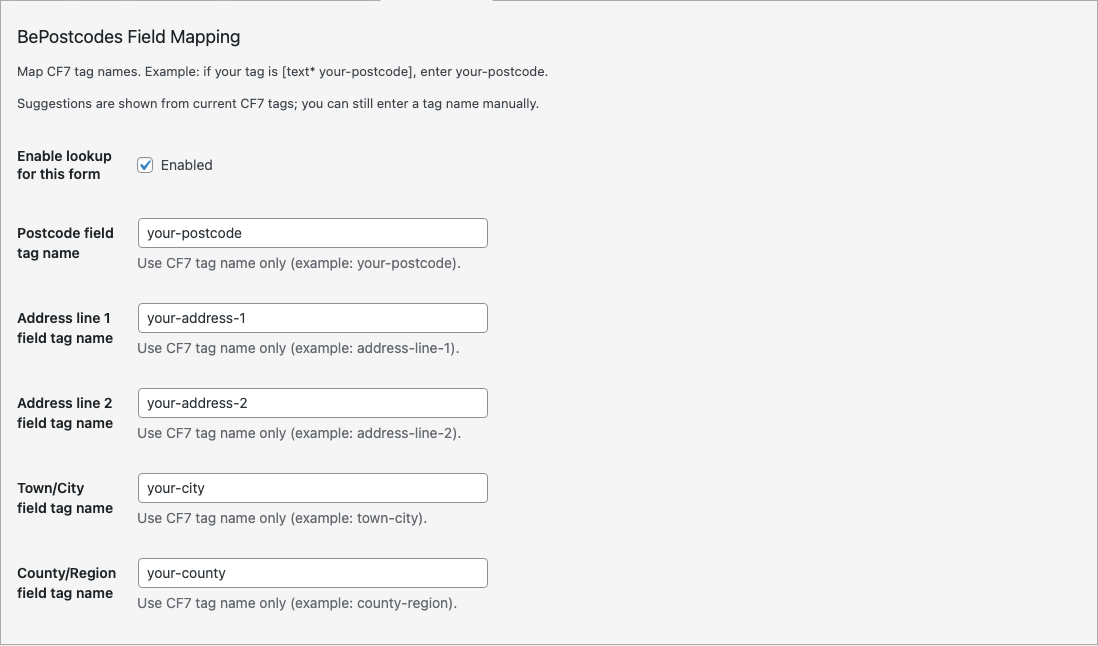
If a required mapping is missing, the form will not save with lookup enabled and the tab shows "Map postcode field to continue" style messages beside the gaps.
What the visitor sees
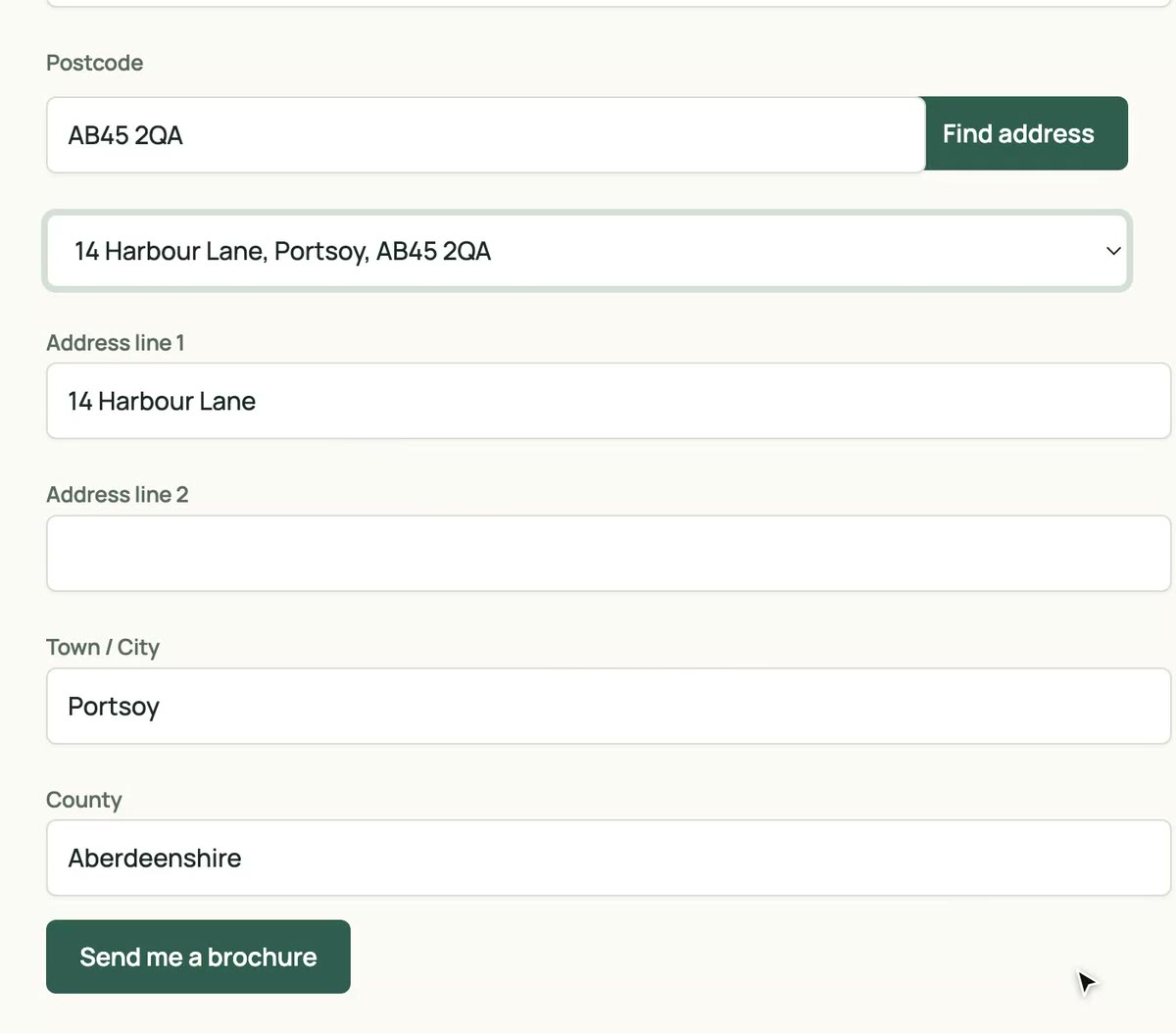
- A Find address button sits beside the mapped postcode field.
- The visitor types a postcode and clicks it. The button reads "Finding addresses..." while it works.
- A list appears, headed "Choose your address from the list", with every address at that postcode.
- They pick one. Line 1, line 2, town and county fill in, and the postcode is tidied into its spaced form.
Every field stays editable, so visitors can correct a detail or type the address themselves. Nothing is added to the form until the plugin is enabled and a key is saved, so there is no half-configured state visible to the public.
Messages a visitor can see:
- "Enter a postcode to search for an address." when the field is empty.
- "Postcode contains invalid characters." or "Postcode length is invalid." when the text cannot be a postcode. These are checked before a lookup is spent.
- "No addresses were found for this postcode." when the postcode is valid but has no deliverable addresses.
- "Address lookup failed. Enter your address manually." if the site could not complete the lookup.
Test it
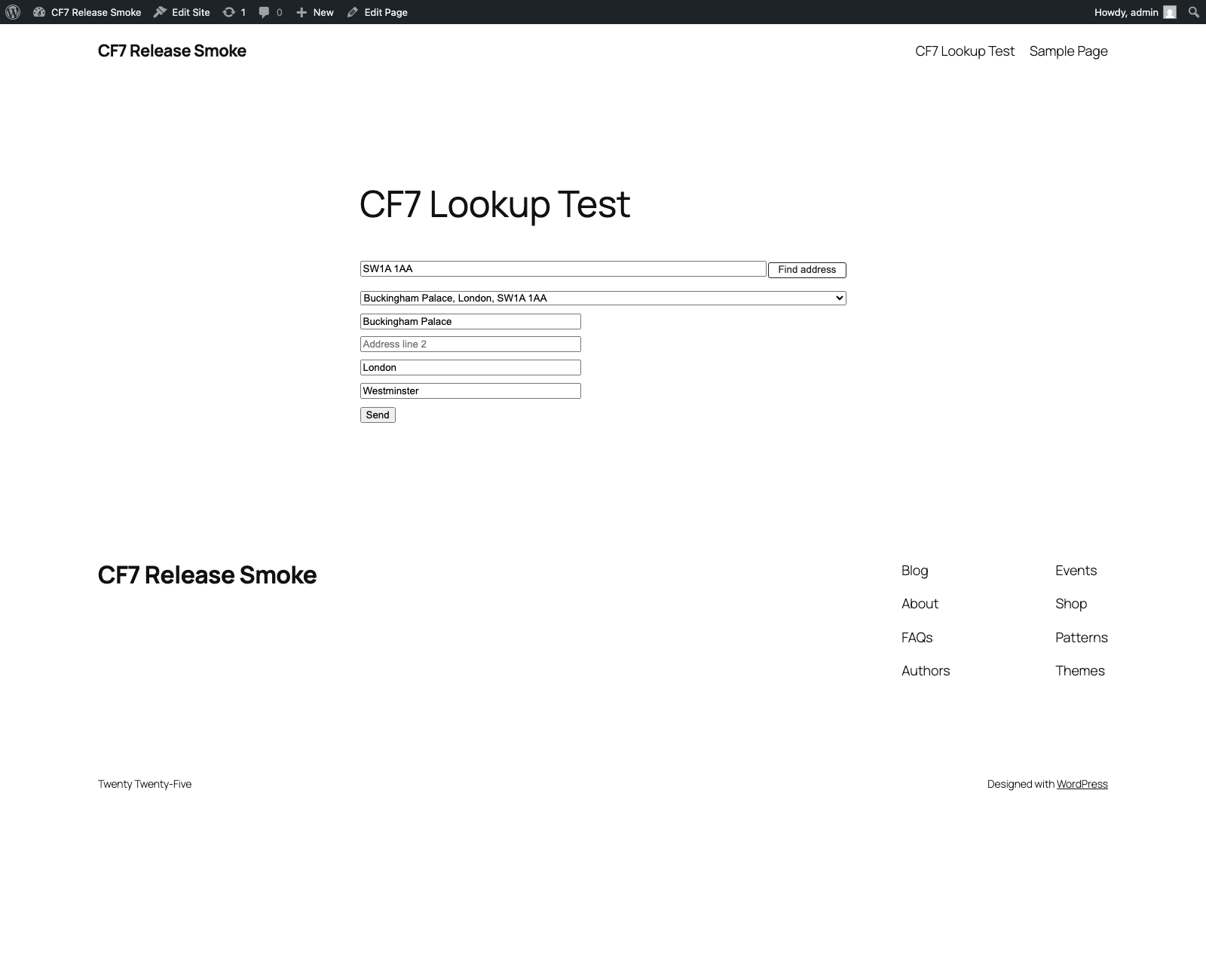
- Open the page that contains the form.
- Type a postcode you know and click Find address.
- Pick an address and check that line 1, town and any optional fields fill in.
- Submit the form and check the email or Flamingo entry carries the full address.
Each click of Find address that reaches BePostcodes uses one lookup. Postcodes that fail the format check are rejected before that and cost nothing.
Troubleshooting
No Find address button on the form
Three switches have to be on: Enable lookup under Settings › BePostcodes CF7, a saved API key, and Enable lookup for this form on the form's BePostcodes tab. Check all three, then clear any page cache.
Lookup runs but the fields stay empty
The mapping is using label text rather than tag names, or the tag names in the form have changed since you mapped them. Open the BePostcodes tab and re-enter the names exactly as they appear inside the square brackets.
"Authentication failed."
The API key is wrong, has spaces around it, or the subscription has ended. Copy it fresh from your dashboard.
"Rate limit exceeded."
Too many lookups in a short burst, usually from testing in a loop or a bot hitting the form. Wait a minute and try again. If it keeps happening, add a CAPTCHA to the form.
The form saves with lookup switched off
Either a required mapping was missing when you saved, or the site-wide Enable lookup switch is off. Fix the mapping or the switch, then tick Enable lookup for this form again.
Two postcode fields on one form
Only the first mapped postcode field gets a button. Use one address block per form.
For developers
- The browser calls your own site at
POST /wp-json/bepostcodes/v1/lookupwith apostcodeparameter and the WordPress REST nonce. Your site then calls BePostcodes with your key. - Error responses carry a
codesuch asinvalid_postcode(400),no_addresses_found(404),rate_limited(429),authentication_failed(502) orfeature_disabled(503), and amessagethe front end shows as-is. - Filled fields receive a standard
inputevent, so any validation or conditional-field script listening for changes keeps working. - Define
BEPOSTCODES_CONTACT_FORM_7_API_KEYinwp-config.phpto set the key in code rather than the database, for example on staging sites.BEPOSTCODES_CONTACT_FORM_7_API_BASE_URLpoints the plugin at a different server for testing. - The per-form mapping is stored in the form's post meta under
_bepostcodes_cf7_mapping, so it is exported and imported with the form.
Questions
- Can I use it on several forms?
- Yes. Map each form on its own BePostcodes tab. The API key and the site-wide switch are shared.
- Do I have to use the suggested tag names?
- No. Any text tag names work. The examples are just a readable convention; what matters is that the names you map match the names in the form.
- Does the postcode field itself get changed?
- Only its formatting. After a lookup it is rewritten with the standard space, so "nr21pj" becomes "NR2 1PJ".
- Does it work with Flamingo, or with mail tags?
- Yes. The plugin only fills the form's own fields, so anything that reads them, including mail tags and Flamingo, sees the completed address.