Requirements
- WooCommerce with the Checkout block on your checkout page. This is the default for stores created since WooCommerce 8.3. If your checkout page contains the
[woocommerce_checkout]shortcode instead, use the classic checkout plugin. - PHP 8.1 or later on your web server.
- Your BePostcodes API key, from your dashboard. One key works on every site you run.
The plugin checks for WooCommerce and its blocks support on activation and shows an admin notice if either is missing.
Install the plugin
- Download the plugin zip from your dashboard.
- In WordPress go to Plugins › Add New Plugin › Upload Plugin, choose the zip and click Install Now.
- Click Activate. A BePostcodes tab is added to the WooCommerce settings.
Add your API key
- Go to WooCommerce › Settings › BePostcodes.
- Paste your key into API key.
- Leave Enable lookup ticked and click Save changes.
That is the whole setup. There is nothing to configure per field: the plugin finds the address inputs in the Checkout block itself, for both billing and shipping.
The key stays on your server. The shopper's browser talks to your own site, which makes the lookup on its behalf.
What the shopper sees
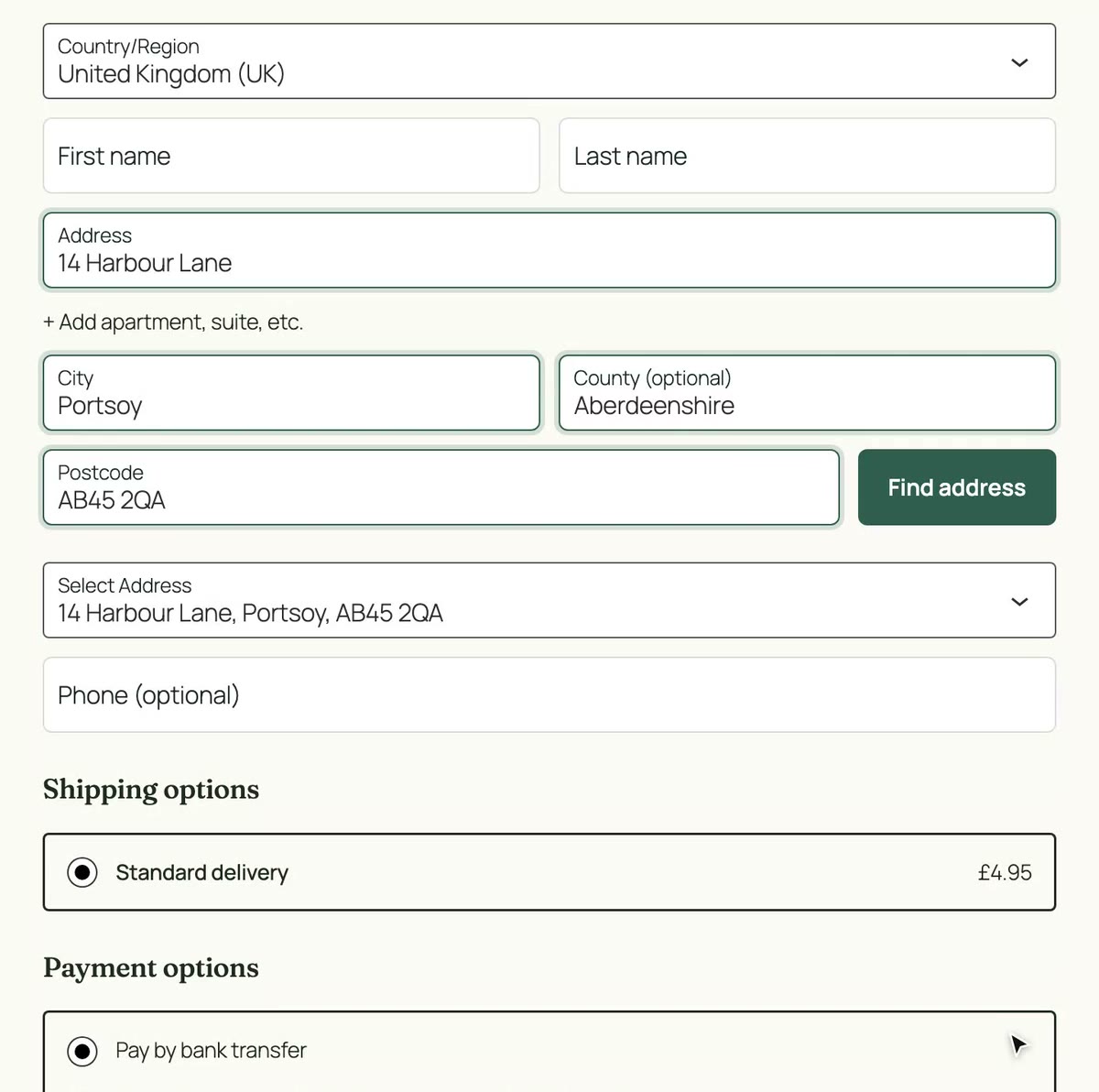
- With the country set to United Kingdom, a Find address button appears under the postcode input in the billing or shipping address.
- The shopper types a postcode and clicks it. The button reads "Finding addresses..." while it works.
- A Select Address list appears, headed "Choose your address from the list".
- They pick one. Address line 1, line 2, city and county fill in, the postcode is tidied into its spaced form, and WooCommerce recalculates shipping as if the shopper had typed it.
The address inputs stay visible and editable throughout, so a shopper can fix a flat number or type an address that is not listed. If the country is changed to anything other than the United Kingdom the button is hidden, and the message "Postcode lookup is only available for UK addresses." is shown if they try to search anyway.
Other messages a shopper can see:
- "Enter a postcode to search for an address." when the field is empty.
- "Postcode contains invalid characters." or "Postcode length is invalid." when the text cannot be a postcode. These are checked before a lookup is spent.
- "No addresses were found for this postcode." when the postcode is valid but has no deliverable addresses.
- "Address lookup failed. Enter your address manually." if the site could not complete the lookup.
Test it
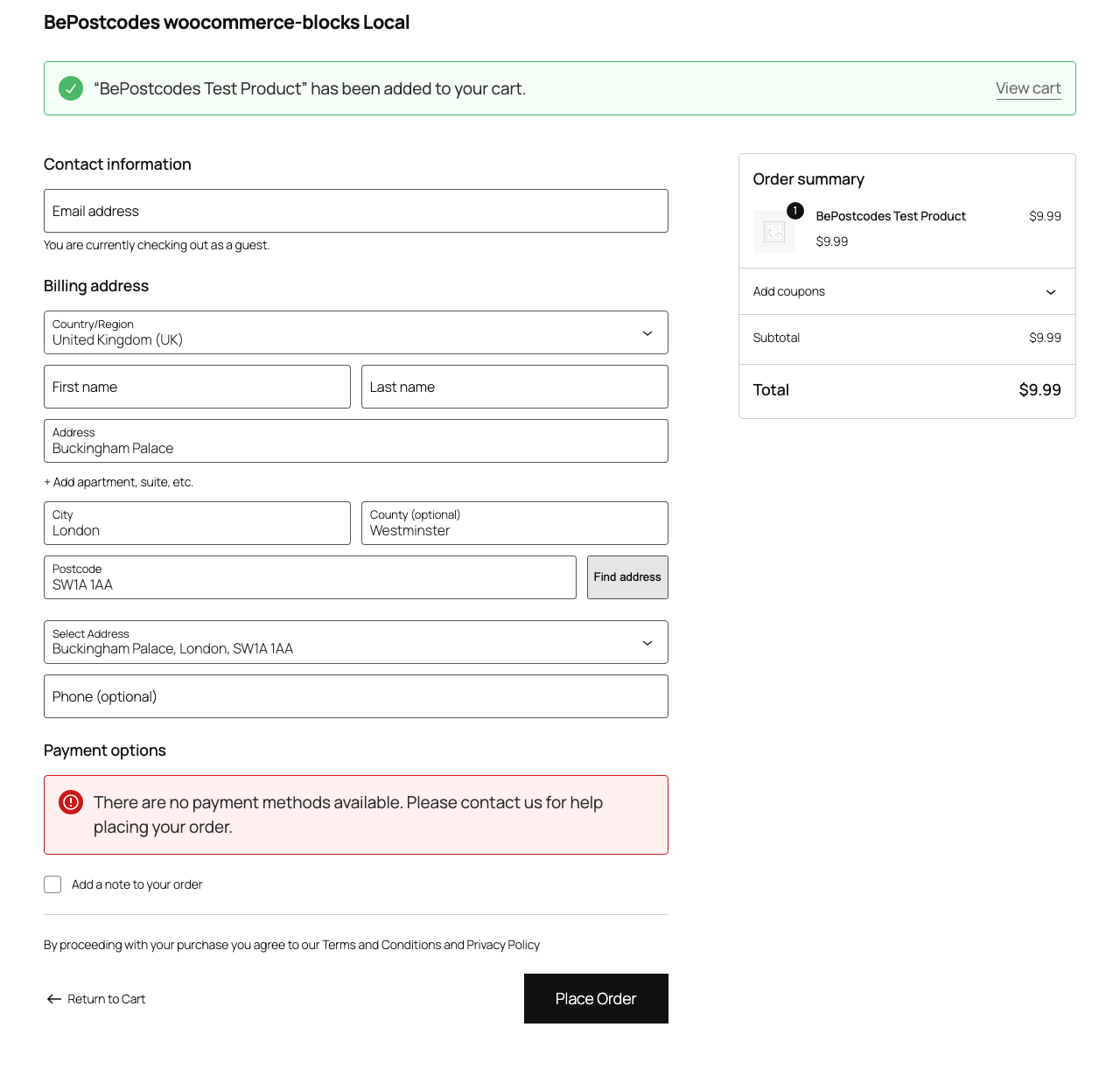
- Add a product to the basket and go to the checkout.
- Make sure the country is United Kingdom.
- Type a postcode you know, click Find address and pick an address.
- Check the billing fields fill in and the shipping options update. If you ship to a different address, repeat for the shipping section.
- Place a test order and open it under WooCommerce › Orders. The address should be stored exactly as chosen.
Each click of Find address that reaches BePostcodes uses one lookup. Postcodes that fail the format check are rejected before that and cost nothing.
Troubleshooting
No Find address button at checkout
Work through these in order: the country is United Kingdom; Enable lookup is ticked and an API key is saved under WooCommerce › Settings › BePostcodes; the checkout page uses the Checkout block rather than the shortcode (open the page in the block editor to check); and the page is not being served from a cache.
The button appears but the postcode is labelled "Postal code" or "ZIP"
The plugin treats a field labelled that way as non-UK and hides the button. This usually means a plugin or theme has renamed the checkout fields. Restore the "Postcode" label for the United Kingdom.
"Authentication failed."
The API key is wrong, has spaces around it, or the subscription has ended. Copy it fresh from your dashboard.
"Rate limit exceeded."
Too many lookups in a short burst. Wait a minute. If it keeps happening on a live store, check for bots hitting the checkout.
The checkout page cannot be reached
If the store is in coming-soon mode or the checkout is restricted, shoppers never get to the block. Check WooCommerce › Settings › Site visibility.
Fields fill in but shipping does not update
The plugin fires the same change events WooCommerce listens for. If another checkout plugin intercepts those events, try disabling it briefly to confirm, then raise a support request with its name.
For developers
- The browser calls your own site at
POST /wp-json/bepostcodes/v1/lookupwith apostcodeparameter and the WordPress REST nonce. Your site then calls BePostcodes with your key. - Error responses carry a
codesuch asinvalid_postcode(400),no_addresses_found(404),rate_limited(429),authentication_failed(502) orfeature_disabled(503), and amessagethe front end shows as-is. - Filled fields receive
input,changeandblurevents so the Checkout block's own state updates. - Define
BEPOSTCODES_WOOCOMMERCE_BLOCKS_API_KEYinwp-config.phpto set the key in code rather than the database, for example on staging sites.BEPOSTCODES_WOOCOMMERCE_BLOCKS_API_BASE_URLpoints the plugin at a different server for testing. - The button and loading labels can be changed by writing
button_labelandloading_labelinto thebepostcodes_woocommerce_blocks_settingsoption. There is no screen for this yet. - The plugin hooks the Checkout block through
woocommerce_blocks_checkout_block_registration. It does not touch the Cart block, My Account addresses or the classic checkout.
Questions
- Does it work for both billing and shipping?
- Yes. Each address section gets its own Find address button, and each search is one lookup.
- What about international customers?
- The button only shows when the country is United Kingdom. Shoppers elsewhere see the normal checkout.
- My store still uses the shortcode checkout. Can I use this plugin?
- No, but the classic checkout plugin is included in every plan and covers that. Switching to the Checkout block later just means swapping plugins.
- Does it change how orders are stored?
- No. The address goes into WooCommerce's standard billing and shipping fields, so order emails, exports and fulfilment plugins are unaffected.