Gravity Forms ships with a proper Address field: street, line 2, city, county, postcode and country, laid out and validated for you. That is the right starting point for any form that needs a UK address. The question is how your visitors fill it in, and there are three answers.
Three ways to collect a UK address
1. Let them type it
The default. It works, and for a low-volume contact form it may be all you need. The cost is accuracy: people abbreviate, mistype, leave the flat number out, or put the town in the wrong box. You find out when a quote goes to the wrong street or a delivery comes back.
2. Address autocomplete
Autocomplete suggests whole addresses as the visitor types the first line. It is familiar from maps apps, and for international forms it is often the best option. For UK addresses it has two weaknesses. Suggestions come from map data rather than deliverable addresses, so flats inside a building and new developments are often missing or wrong. And it asks the visitor to type the part of the address that varies most, the first line, rather than the part they know by heart.
3. Postcode lookup
The visitor types their postcode, which every UK resident knows, and picks their address from the short list at that postcode. The form fills itself. Because the list comes from delivery addresses rather than map points, flats and new builds are there, and the result is formatted the way a courier expects. For a UK audience this is the approach banks, utilities and retailers use, and the one visitors expect.
Set it up on the Address field
With the BePostcodes plugin for Gravity Forms the whole setup is a key and a checkbox:
- Install the plugin from your BePostcodes dashboard and activate it. It registers as a Gravity Forms add-on, so you need Gravity Forms 2.0 or later already running.
- Paste your API key under Forms › Settings › UK Postcode Lookup. One key covers every site you run.
- Open the form, click the Address field, and on the General tab tick Enable UK Postcode Lookup. Update the form.
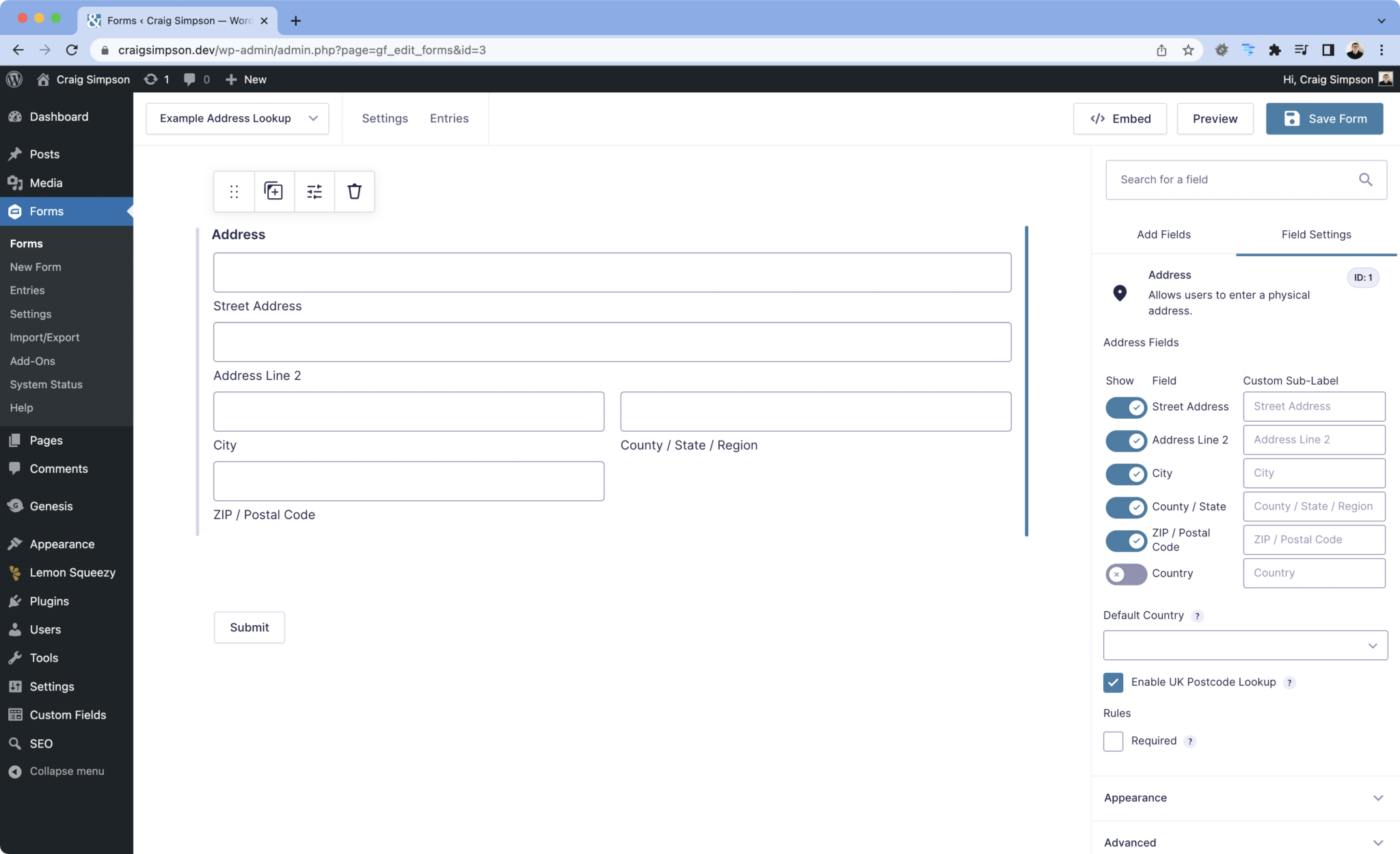
On the front end the visitor now sees a Postcode box and a Find Address button above the address inputs. They search, pick, and Street Address, Address Line 2, City, County and Postcode fill in. The inputs stay editable, so a visitor whose address is not listed can still type it. The full walkthrough, with every message the visitor can see, is in the setup guide.
Settings worth a look
- Address type. The United Kingdom type shows the inputs UK addresses need and hides the state list. The International type works too, with County mapped to the State / Province / Region input.
- Hide Address Line 2 only if you must. Flats, units and named buildings need it. If the input is hidden, that part of the address is not written anywhere.
- Make the field required. Gravity Forms then insists on the postcode, which is also what prompts a visitor who searched but did not pick an address to go back and choose one.
- One lookup-enabled Address field per page. On a multi-page form put a second address on a later page rather than beside the first.
What arrives in your entries
Nothing changes downstream. The address is saved in the Address field's own inputs, so notifications, confirmations, conditional logic, exports and add-ons that read the Address field all keep working. If you push entries to a CRM, the street, town and postcode arrive in their own columns rather than one free-text blob.
Test it before you rely on it
- Preview the form, type your own postcode and click Find Address.
- Pick your address and check each input fills in correctly, including line 2 if you have one.
- Submit, then open the entry under Forms › Entries and confirm the address is stored line by line.
- Try a postcode with no addresses, or a mistyped one, to see the messages your visitors would see.
Each Find Address click uses one lookup from your allowance; picking from the list is free. Plans start at £6 a month for 300 lookups, which covers a busy contact form comfortably.